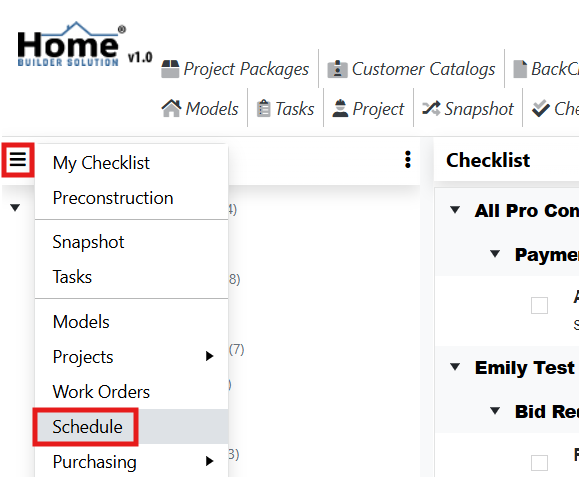
Go to the navigation menu and then click on Schedule.
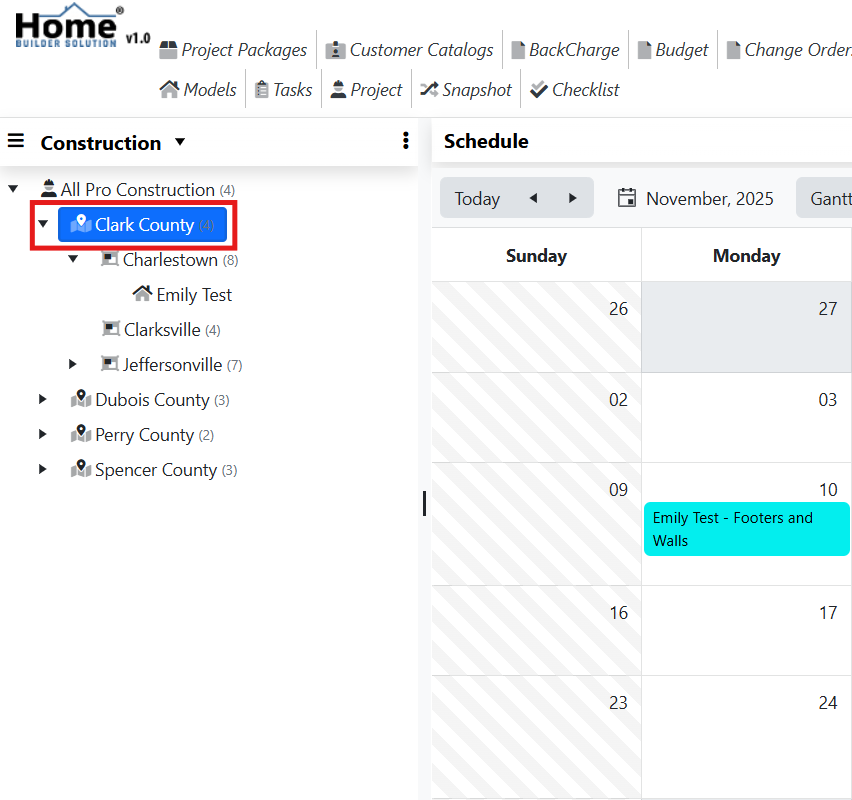
From the content panel, select the business unit.
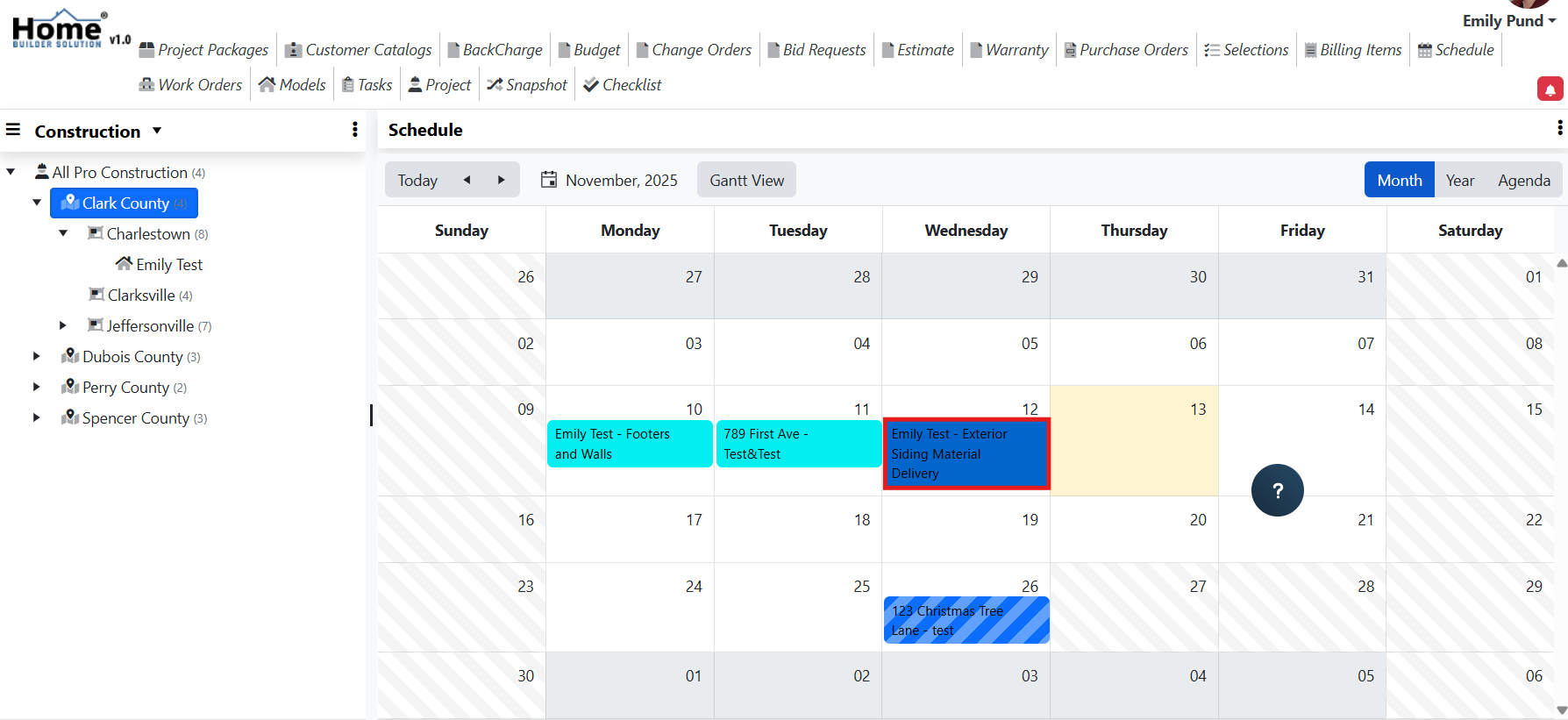
On the calendar view, find the work order that you would like to reschedule then drag and drop the work order to the new date.
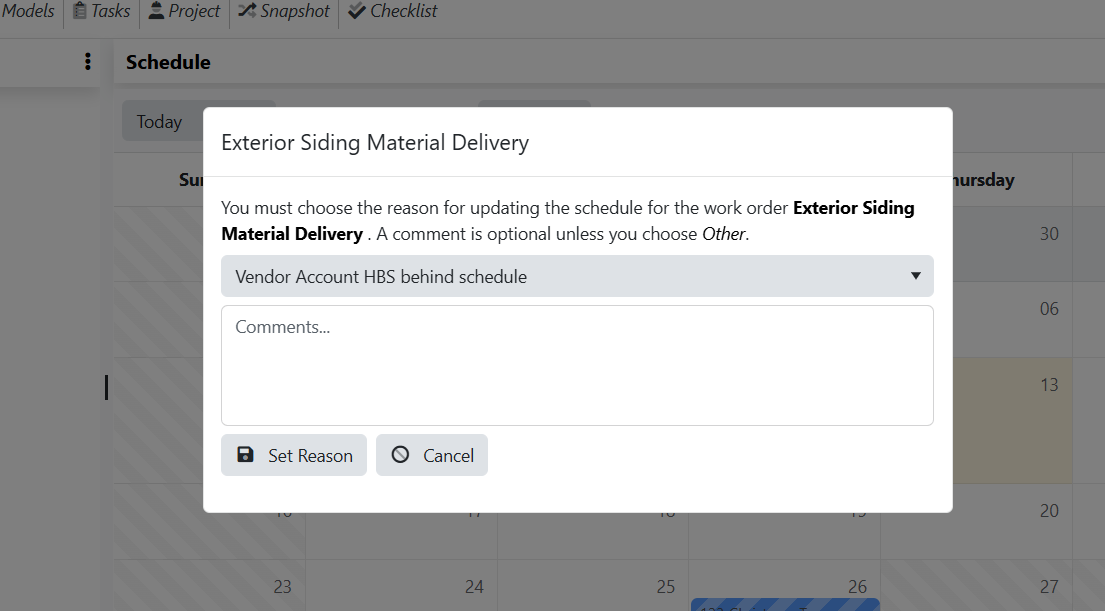
Set the reason for the scheduling change.
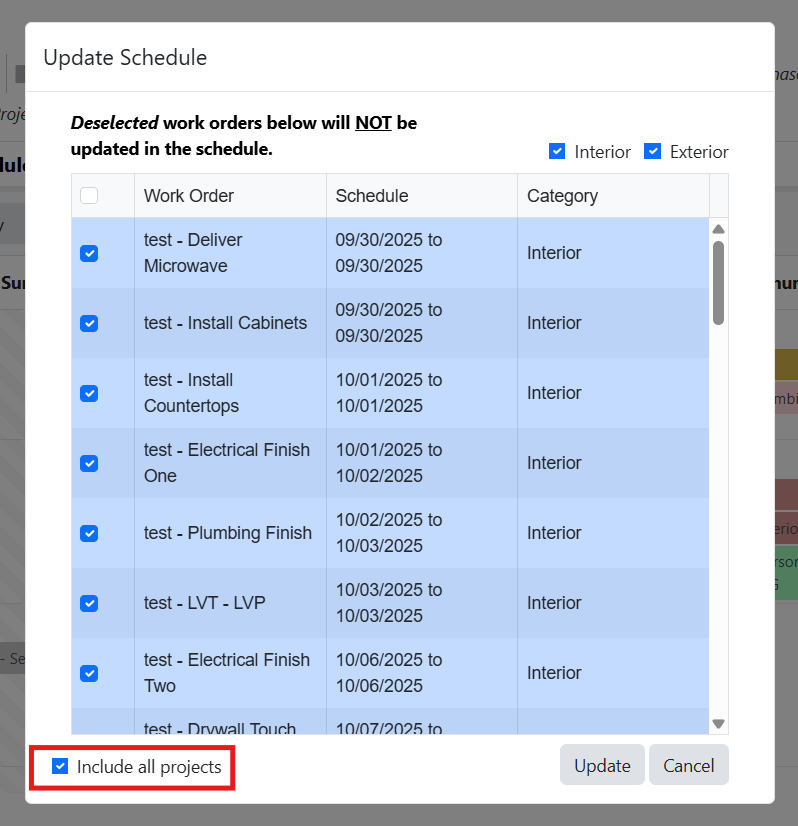
Select the Include all Projects option at the bottom of the screen to see all work orders on all projects that are after the work order you are rescheduling.
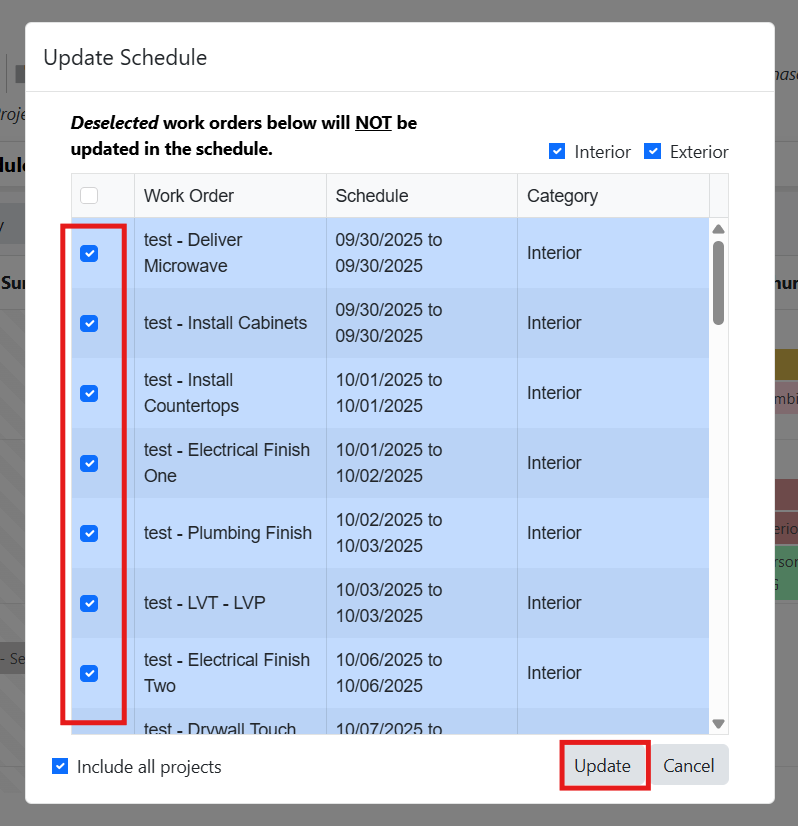
Select the work orders that you want to move and then click on Update.
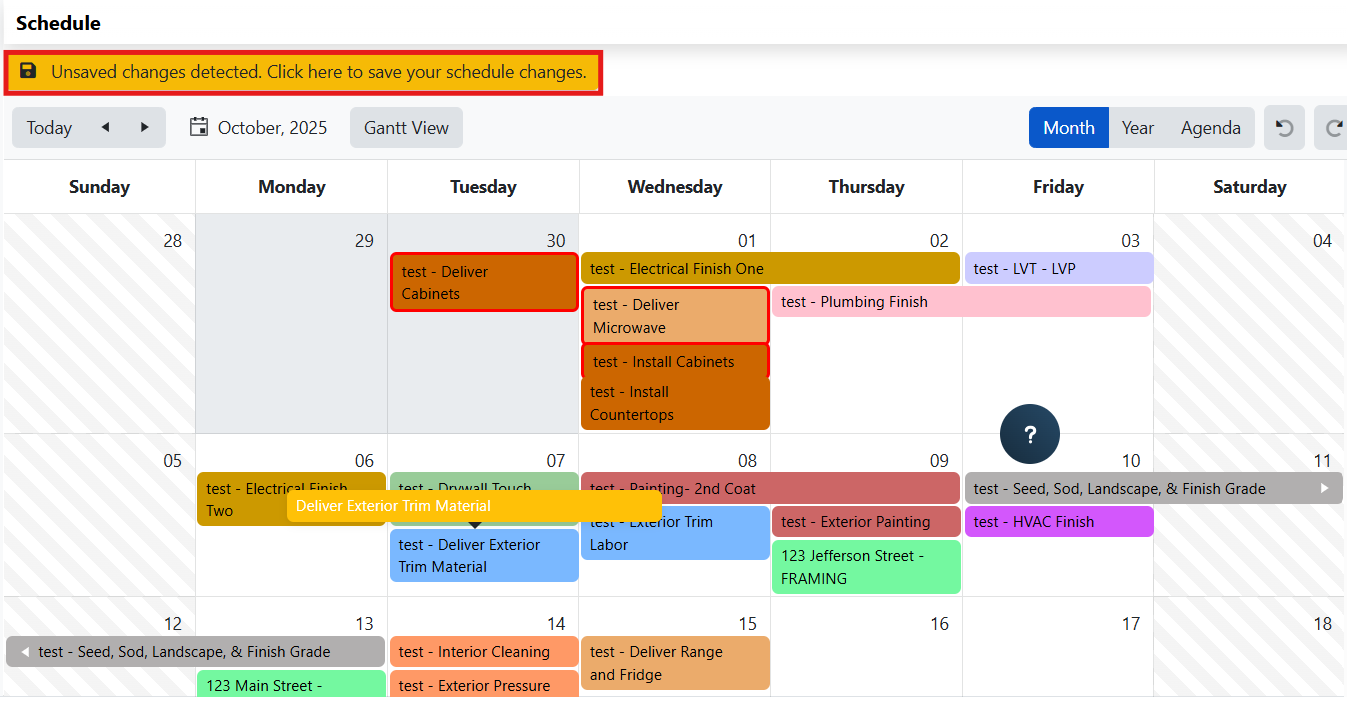
Preview the changes on the schedule and then click on the yellow bar to save.
Was this article helpful?
That’s Great!
Thank you for your feedback
Sorry! We couldn't be helpful
Thank you for your feedback
Feedback sent
We appreciate your effort and will try to fix the article