This session will give you a high level look at how the various parts of HBS connect and the logic behind our approach.
Projects
A project refers to a specific construction or remodeling job at a designated location or address. This could involve building a new home, renovating an existing property, or any other type of construction work that takes place at that particular site. Projects typically include all the planning, budgeting, and execution phases, as well as tracking the progress and any changes that occur throughout the process.
In Home Builder Solution (HBS), the project serves as the parent record, meaning it acts as the central hub for storing all of the detailed information related to a specific home build or remodel. It organizes and links all aspects of the project into one comprehensive record.
Learn how to create and maintain projects here:
- About Projects
- Creating a New Project
- Updating an Existing Project
- Deleting an Existing Project
- Updating Vendor Access to Files & Media
Work Orders
Work orders are essential for managing work at the job site. They are categorized into one of 26 classifications (such as plumbing, framing, or electrical) and consist of billing items (labor and material costs). Work orders ensure that tasks are scheduled with specific start and end dates, assigned to the appropriate team or subcontractors, and tracked for progress to ensure timely completion and effective project management.
Learn how to create and maintain work orders here:
- About Work Orders
- Creating a New Work Order
- Updating an Existing Work Order
- Deleting an Existing Work Order
- Creating a New Milestone
- Updating an Existing Milestone
- Deleting an Existing Milestone
Schedule
The project schedule displays work orders on the calendar according to their scheduled start and end dates. Adjusting dates is easy with the drag-and-drop scheduler, enabling quick modifications when needed. When a schedule change is made, you can choose which work orders' dates should be adjusted and which should remain as originally scheduled.
Additionally, the schedule adds an extra layer of accountability for scheduling changes. Each time a change is made, a reason must be selected to explain why the work order is being rescheduled. HBS keeps a history of these changes, ensuring transparency and providing a clear record of any scheduling changes throughout the project.
Learn how to work with the schedule here:
- About the Schedule
- Viewing the Schedule
- Updating the Schedule
- Updating the Schedule on Multiple Projects
Checklist
A user's checklist is a list of actions that need to be completed by that user, or another user with the same responsibility. Every user's checklist is unique to that user. HBS prompts each user to take action on daily directives that need their immediate attention.
The checklist is automatically generated based on three main factors:
- A user's current responsibilities
- Previous actions taken on the project
- Company preferences/settings (material lead times)
A User's Current Responsibilities
Responsibilities are assigned to user roles. When a user is assigned to a user role, that user is granted the permissions and takes on the responsibilities of that role. For example, if a user is assigned to the superintendent role and that role has been assigned the Verify Work Complete responsibility, then when it is time to verify a work order, that task will be listed in that user's checklist.
Previous Actions Taken on the Project
Another factor of whether a prompt is displayed on a user's checklist is what phase that work order is in the 6 phases of the checklist process: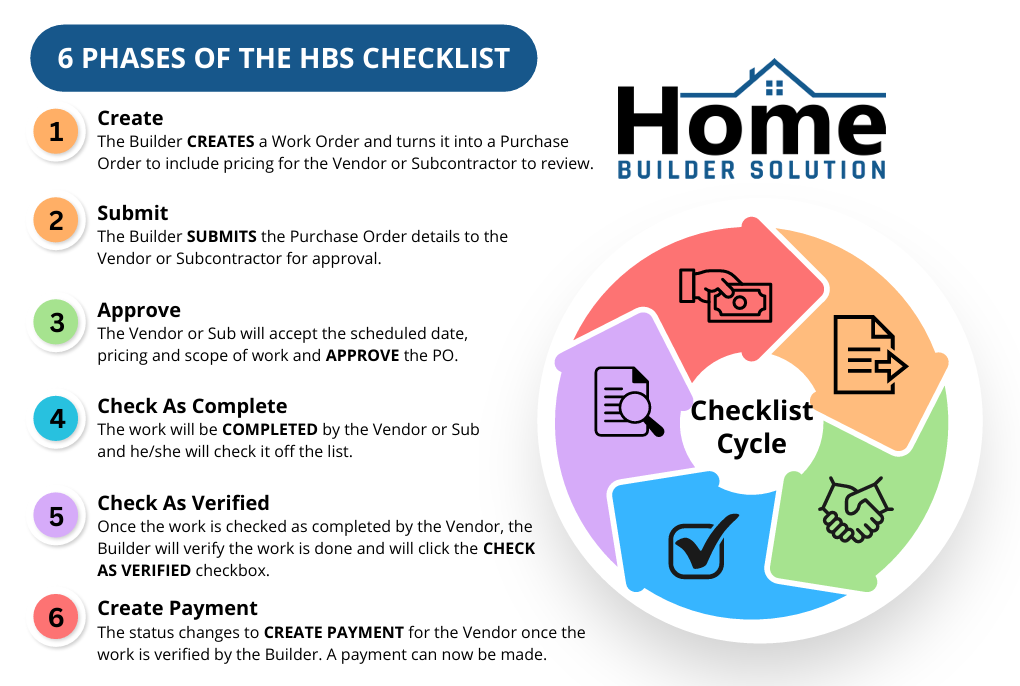
Company preferences/settings
The final factor HBS considers when building a user's checklist are company settings/preferences. There is a company setting in preferences called PO Approval Days, which is the number of days before the start of a project that you want to start showing checklist items. For example, if your PO Approval Days (material lead time) for windows is set to 30 days then checklist items pertaining to windows will not begin to display until 30 days prior to the start of that work order.
Learn how to work with the checklist here:
Billing Items
Billing Items are the individual pieces that make up a work order in the homebuilding process. These can include materials being delivered, construction work being performed, installations, or any combination of those tasks. Each billing item helps track the billable items that are associated to each individual work order.
In HBS, managing billing items involves two main steps:
Building the Billing Item Library
This is where you create and maintain a list of all possible billing items that can be used on a project, bid request, estimate, or budget.Adding Billing Items to Work Orders
Once your library is set up, you can select items from it and attach them to specific work orders. This creates the actual billing records for that job, allowing you to track costs, suppliers, and progress.
Learn how to work with billing items here:
- About Billing Items
- Creating a New Billing Item
- Updating an Existing Billing Item
- Deleting an Existing Billing Item
- Adding Billing Items to a Work Order
- Deleting Billing Items from a Work Order
- Completing a Takeoff
Supplier Items
Supplier items are vendor-specific child records of billing items. They store pricing and details that are unique to each supplier, including optional date ranges that define when the pricing is valid. These items are created and managed within the billing item library and become available for use when making a vendor selection on a billing item associated to a work order.
Learn how to work with supplier items here:
- About Supplier Items
- Creating a New Supplier Item
- Updating an Existing Supplier Item
- Deleting an Existing Supplier Item
Vendor Selections
When making a selection on a billing item, you’ll choose a specific vendor to indicate who will perform the work and to pull in their associated pricing. Billing items are organized by classification, and when expanded, they display all available supplier (vendor) items for that category. Selecting a vendor item links it to the billing item, finalizing the vendor choice and applying their pricing details.
Learn how to work with vendor selections here:
Purchase Orders
A purchase order outlines the scope of work, price, and schedule for a vendor or subcontractor. In HBS, multiple work orders can be added to the same purchase order as long as the classification of the work order is the same. Once created the purchase order is submitted to the vendor for approval and then approved in HBS. If changes are needed after approval, a purchase order addendum is used to update the PO. Payment schedules can be added to the purchase order to manage payments on the purchase order.
Learn more about purchase orders here:
- About Purchase Orders
- Creating a New Purchase Order
- Creating a Purchase Order Addendum
- Submitting a Purchase Order
- Approving a Purchase Order
- Deleting an Existing Purchase Order
- Creating a Payment Schedule
- Creating a Payment Approval Level
- Approve a Payment
Models
Models are templates of work orders and billing items that can be reused to create budgets, estimates, and projects. You define the scheduled number of days for each work order, allowing the system to automatically generate a project schedule when the model is applied to a project. While projects created from a model can still be modified as needed, using a model streamlines the process and ensures that nothing is overlooked.
Whether you are a custom home builder or a spec home builder, models save time and prevent omissions by capturing the common elements across builds. Starting each estimate, budget, or project from a model is a best practice for using the software, promoting consistency, efficiency, and accuracy throughout the project.
Learn how to create and maintain models here:
- About Models
- Creating a New Model
- Updating an Existing Model
- Deleting an Existing Model
- Copying a Existing Model
- Adding a Work Order to a Model
- Deleting a Work Order from a Model
- Adding a Model Variation to a Model
- Working with Model Workflows
- Adding a Model Work Order Restriction
- Updating a Model Work Order Restriction
Project Options
Project options allow you to group together work orders and billing items. Once a project option has been created it can be applied to a project on an as needed basis or attached to a change order.
Learn more about Project Options here:
- About Project Options
- Creating a New Project Option
- Updating an Existing Project Option
- Deleting an Existing Project Option
- Adding a Project Option to a Project
Model Variations vs Project Options
Model Variations are used when a change impacts multiple work orders across different classifications and is typically known at the beginning of the project. For example, whether a home is built on a basement or a slab foundation. These variations are built into the model itself, so when a model is applied to a project, the associated work is scheduled automatically.
Project Options, on the other hand, are used for smaller, more isolated additions made after the project has started or for customizations that don’t significantly affect the overall structure. For instance, adding a bay window would be considered a project option. Since these options are independent of the model, users must manually set the scheduled start dates for the associated work orders when adding them to the project.
Estimates
Estimating allows you to use your existing models and billing items to estimate the cost of a project. You can then add your mark-up and create a presentable document, with your company information/logo, you can present to a potential customer.
Learn more about Estimates here:
Budgets
Budgets allow you to use your existing model or estimate to build out a budget for the project. Creating a budget in HBS allows you to monitor Budget versus Actual spend throughout the life cycle of the project.
Learn more about Budgets here:
Bid Requests
The bid request feature allows you to quickly request and approve bids from new and existing trade partners. You can dictate how the job is bid whether that's as a package or as a single material. Once a bid is accepted, it will automatically be added to your library of billing items.
Learn more about Bid Requests here:
Tasks
A task is a non-standard request that can be added to a project and assigned to multiple users. Once assigned, the task is automatically added to the checklist of the assigned user(s) and appears on the project schedule. Tasks are not linked to specific work orders and do not have any associated prices. They are typically used for smaller, one-off requests or activities that don’t require the complexity of a full work order, providing a flexible solution for simpler tasks within the project.
Learn more about Tasks here:
- About Tasks
- Creating a New Task
- Updating an Existing Task
- Deleting an Existing Task
- Creating a New Task Query
- Updating an Existing Task Query
- Deleting an Existing Task Query
Change Orders
Change orders are necessary to track needed changes after the purchase agreement has been signed. Change orders in HBS are made up of project options that define the details and scope of the change. A printable view is available to show the customer the details of the change order along with the additional costs.
Learn more about Change Orders here:
- About Change Orders
- Creating a Change Order
- Updating an Existing Change Order
- Deleting an Existing Change Order
Back Charges
Back charges track amounts owed by a vendor, along with relevant details for each charge. When making a payment, you’ll be prompted to apply any existing back charges for that vendor.
Learn more about Back Charges here:
Warranty
The Warranty section allows you to manage completed projects that are currently under warranty, including customer information and any associated warranty claims.
Learn more about Warranties here:
Customer Portal
The Customer Portal enables you to share key milestones, activity updates, required tasks, documents, and photos related to the homeowner’s project. You control what information is visible to the customer, and the portal can also serve as a communication tool throughout the project.
Learn more about Customer Portal here:
- About the Customer Portal
- Creating a New Customer
- Updating an Existing Customer
- Deleting an Existing Customer
- Adding a New Activity
- Updating an Existing Activity
- Deleting an Existing Activity
- Creating a Customer Milestone
- Updating a Customer Milestone
- Deleting a Customer Milestone
- Add a New Customer Contact
- Updating an Existing Customer Contact
- Deleting an Existing Customer Contact
- Viewing the Customer Portal Preview
Customer Selections
The customer selection section in HBS allows you to build out customer catalogs that consist of a library of all of the available selection options. There are also project packages that allow you to group together selection options and apply that project package to a project. The customer will choose from the project package their selections.
Learn more about Customer Selections here:
- About Customer Selections
- Creating a Customer Catalog
- Updating a Customer Catalog
- Deleting a Customer Catalog
- Creating a Project Package
- Updating a Project Package
- Deleting a Project Package
- Adding a Project Package to a Project
- Deleting a Project Package from a Project
Working with the Mobile App
The mobile app is a streamlined version of the application, built for quick, efficient use on the job site.
Learn more about the Mobile app here:
Was this article helpful?
That’s Great!
Thank you for your feedback
Sorry! We couldn't be helpful
Thank you for your feedback
Feedback sent
We appreciate your effort and will try to fix the article